Managing tracking consent with CDP
When a Send user database is connected to CDP, tracking consent can be managed directly from the customer profile in CDP.
In this configuration, CDP is the entry point for tracking preference data. The preference is managed in CDP and synchronized with the __clt field in the Send user database.
The configuration requires three steps:
- enable tracking consent management in the Send user database connected to CDP;
- map the CDP tracking consent field to the Send
__cltfield; - collect and update the tracking preference in CDP.
CDP and its integrations are configured by the Contactlab staff.
Before enabling or changing any of the settings described in this guide, contact your Contactlab representative to verify that the required fields and mappings have been configured correctly.
Send
Enable consent management
Tracking consent management must be enabled in the Send user database connected to CDP.
To enable the feature:
-
Go to Configure > User DB.
-
Select the database connected to CDP.
-
Click Edit.
-
Select Enable consent tracking management.
-
Click Edit to save the changes.
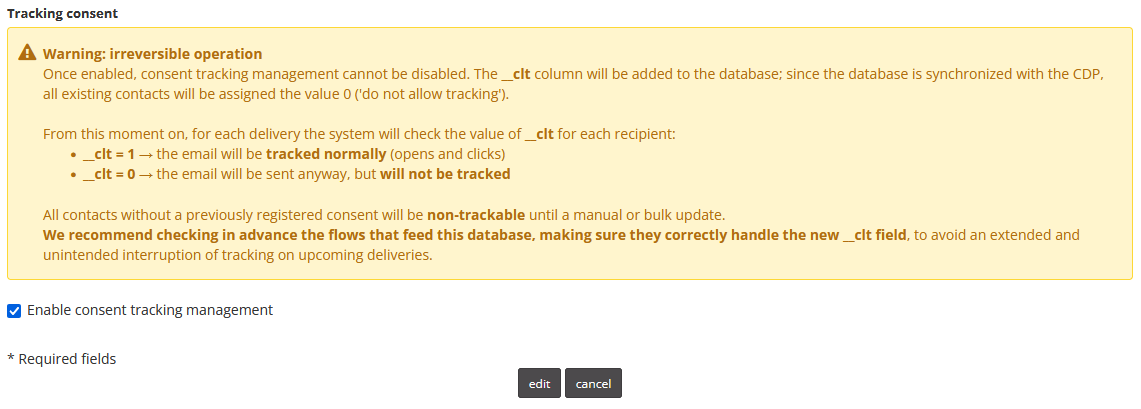
Enabling the feature automatically adds the __clt field to the Send user database.
- When tracking consent management is enabled for a database connected to CDP, all existing users are initially assigned
__clt = 0. - The preference must then be updated and managed directly in CDP, which is the entry point for the data. The value in Send is populated using the tracking consent information available in CDP.
- Once enabled on a database, tracking consent management cannot be removed, and the
__cltfield remains available in the database.
The link to the tracking preference management page can be retrieved in Send by going to Configure > User DB, selecting the database connected to CDP, and clicking Edit.
From the same section, the use of the __clt field at send time can be temporarily disabled. This setting also applies to sends created through Plans.
Settings
Map the tracking preference between CDP and Send
To synchronize the tracking preference between CDP and Send, the tracking consent field in CDP must be mapped to the __clt field created in the Send user database.
To configure the mapping:
- Go to Settings > Customers > Sources > Send > Consents.
- Locate the relevant Send user database.
- Map the CDP field
profiling.tracking.statusto the Send field__clt. - Save the configuration.

The values are mapped as follows:
- when
profiling.tracking.statusistrue, Send uses__clt = 1; - when
profiling.tracking.statusisfalseorNULL, Send uses__clt = 0.
A missing value in CDP is not interpreted as consent to tracking.
Customers
Manage consent in the customer profile
In CDP, the tracking preference can be viewed and managed from the customer profile.
To access the field:
- Go to Customers > Customer list.
- Open the customer profile.
- Select Consents > Profiling.
- Locate the Tracking field and its related Status.

The value stored in the Tracking field populates profiling.tracking.status and, through the configured mapping, is synchronized with the __clt field in the Send user database.
The customer is responsible for ensuring that the status stored in CDP is consistent with the preference expressed by the user and for updating it whenever that preference changes.
Segments
In CDP, the tracking consent preference is stored in the Boolean field profiling.tracking.status, which can have the following values:
true: the user consents to tracking;false: the user does not consent to tracking;NULL: the preference has not been set.
The field can be used as a segmentation condition. To make it visible during segment creation, go to Settings > Segments > Field settings, select the Demographic category, and make the tracking consent field visible.
During segmentation, you can:
- use
profiling.tracking.status = trueto select users who consent to tracking; - use
profiling.tracking.status = falseto select users who do not consent to tracking.
Profiles where profiling.tracking.status is NULL are not included when the segmentation condition selects only false.
To include all users who have not provided positive consent, configure the segmentation rule to include both false and NULL.
When synchronized with Send, both false and NULL are converted to __clt = 0.
Deliveries created through Plans in the Segments area apply the __clt value synchronized with Send when the selected email group is configured for Marketing deliveries:
- with
__clt = 0, the communication is delivered without open and click tracking; - with
__clt = 1, the communication is delivered with open and click tracking enabled.
For accounts enabled for Transactional deliveries, the value of __clt is not considered, and open and click tracking is applied to all recipients.
Automations
In Automations > Marketing Automation, the Send mail step allows open and click tracking to be enabled or disabled for each email.
The initial values shown are inherited from the selected email group. They can be changed for the email without modifying the email group’s default configuration.
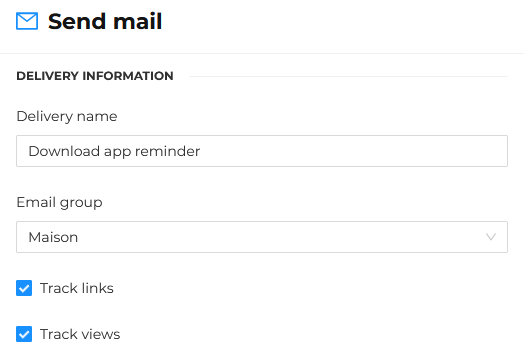
The __clt field is not currently applied to emails sent through Marketing Automation.
Tracking behavior is determined by the configuration of the Send mail step:
- when tracking is disabled, the email is delivered without open and click tracking;
- when tracking is enabled, opens and clicks are tracked regardless of the recipients’
__cltvalues.
The customer must therefore review and configure tracking separately for each email used in an automation.
Reporting
For information about viewing changes to user tracking preferences, see Tracking consent reporting.