Managing tracking consent with Send
Tracking consent management can be enabled separately for each Send user database. The feature stores and applies each recipient’s preference for open and click tracking.
Configure
Enable tracking consent management on an existing database
To enable tracking consent management:
-
Go to Configure > User DB.
-
Select the relevant database.
-
Click Edit.
-
Select the Enable consent tracking management option.
-
In the Default value for existing contacts drop-down menu, select how to set the consent field for contacts already present in the database:
-
Tracking not allowed (0);
-
Tracking allowed (1).
-
-
Click Edit to save the changes.
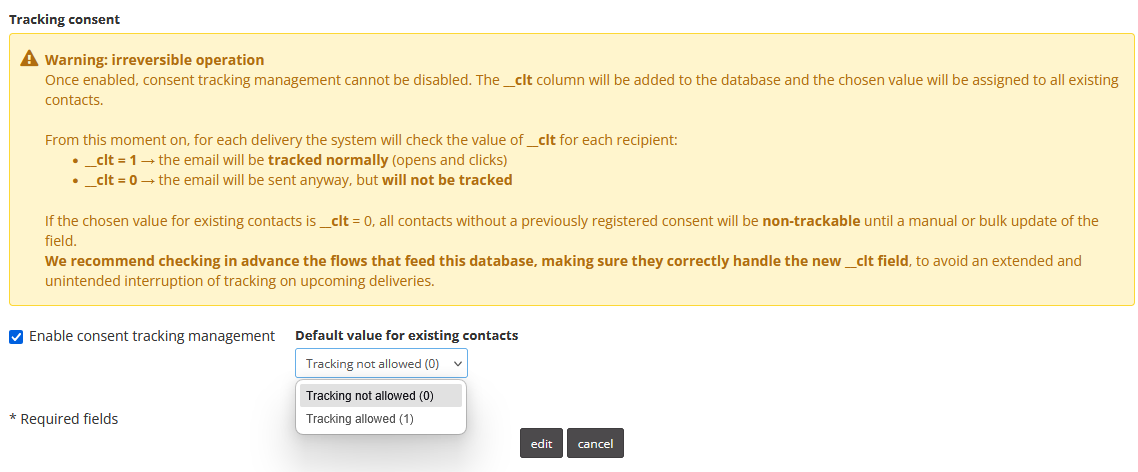
Tracking consent management must be enabled separately for each user database.
Once enabled, the feature cannot be removed, and the __cltfield remains available in the database.
The __clt field
Enabling the feature adds the __clt field to the database. This field stores the user’s tracking preference.
The field can have the following values:
| Value | Behavior |
|---|---|
__clt = 0 | The communication is delivered without open and click tracking. |
__clt = 1 | The communication is delivered with open and click tracking enabled. |
The field’s default value is 0.
When enabling the feature on an existing database, the customer can select the initial value to assign to existing contacts, as described in the previous section.
The customer is responsible for ensuring that the __clt value is consistent with the preference expressed by the user and for updating it whenever that preference changes.
Manage the tracking preference link
After the feature is enabled, Contactlab provides a dedicated link for managing tracking preferences.
This link is separate from the unsubscription link and allows recipients to change their tracking preference without stopping the delivery of communications.
To retrieve the link:
- Go to Configure > User DB.
- Select the relevant database.
- Click Edit.
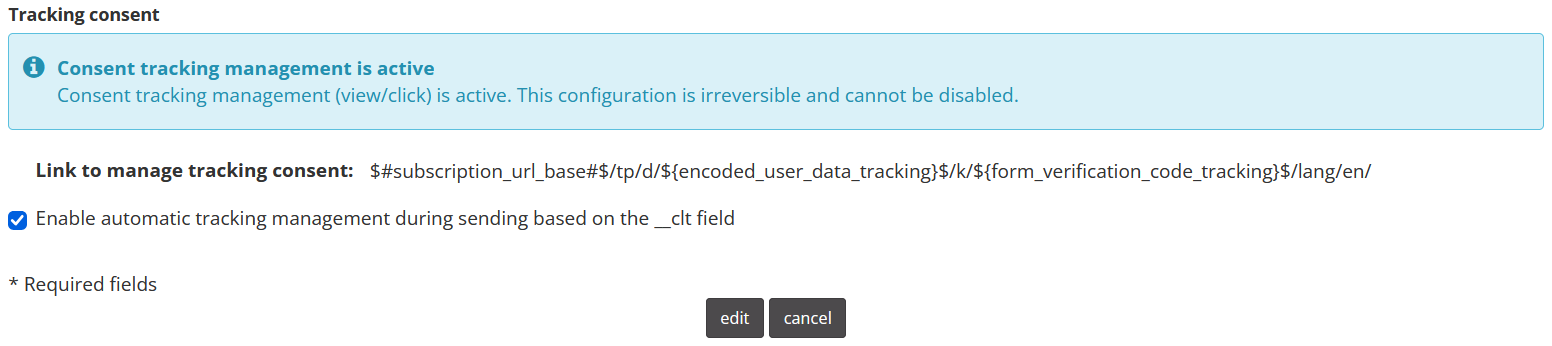
The link uses the following syntax:
$#subscription_url_base#$/tp/d/${encoded_user_data_tracking}$/k/${form_verification_code_tracking}$/lang/it/ .
Its structure remains unchanged. At delivery time, Contactlab automatically populates the parameters required to identify the recipient and update the associated preference.
Insert the link into the communication without changing its placeholders. Do not manually replace the dynamic parameters.
To display the page in one of the available languages, change the code after the /lang/ parameter.
For example:
-
itfor Italian; -
enfor English; -
frfor French; -
esfor Spanish.
Disable tracking consent management at send time
Once tracking consent management has been enabled, the __clt field cannot be removed. However, if the field needs to remain in the database for a limited period without being taken into account during sends, its use can be temporarily disabled.
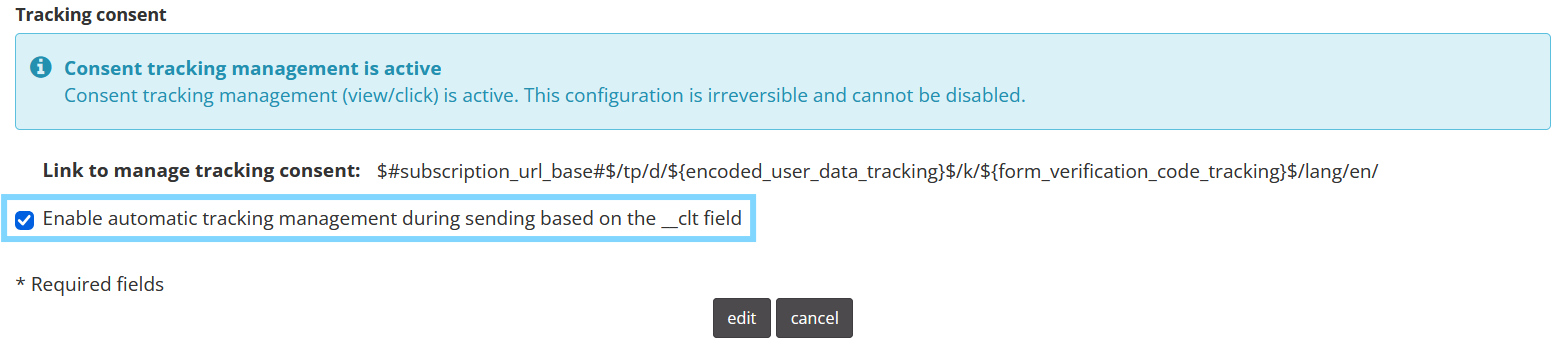
Go to Configure > User databases, select the relevant database, and click Edit. Clear the Enable automatic tracking management during sending based on the __clt field option, then click Edit to save the changes.
Manage consent in subscription forms
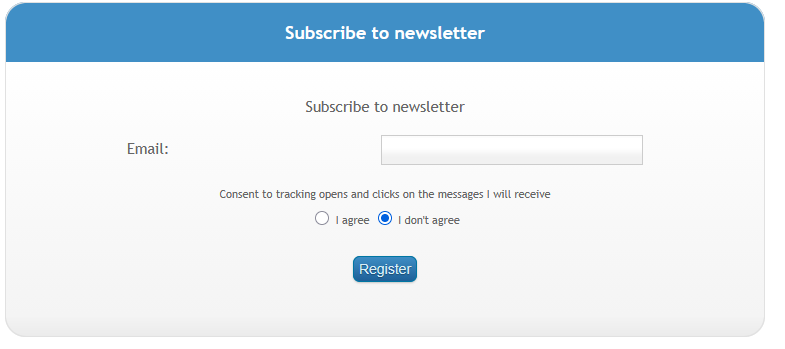
When tracking consent management is enabled, the corresponding field also becomes available in the subscription settings.
To access the configuration:
- Go to Configure > Email groups.
- Open Subscriptions.
- Click Manage.
The tracking preference field is added to the subscription page and form according to the selected configuration.
Configuring a New Database with Existing Consent
A new user database can be configured when consent has already been collected by defining the __clt field during the upload.
Proceed from the following section:
- Configure > User DB > Create new database
- Upload the file containing the list of users and the corresponding consent. The value must be:
0if consent has not been given;1if consent has been given.
- In the Database structure step, select the Use a column from my file for consent tracking option.
- In the table below, select the column containing the consent information.
The platform automatically renames the field to__cltand sets its type to Numeric(1).
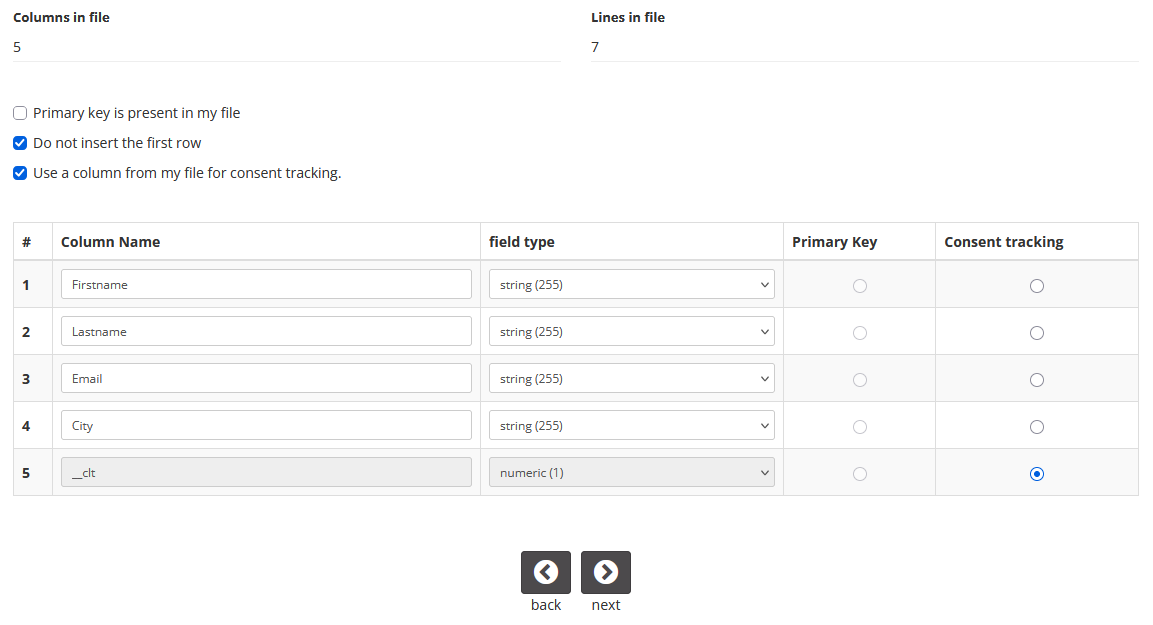
- If the consent field contains the value
0, it will be interpreted as consent not granted. - If the field contains a positive numeric value, it will be interpreted as consent granted and set to
1. - If the field contains text, is left blank, or contains a negative number, its value will automatically be set to
0(consent not granted).
Create
Tracking behavior
For Marketing deliveries, Contactlab uses the value of __clt to determine the tracking behavior for each recipient:
- with
__clt = 0, the communication is sent without open and click tracking; - with
__clt = 1, open and click tracking is enabled.
For accounts enabled for Transactional deliveries, the value of __clt is not considered, and open and click tracking is applied to all recipients.
Insert the link into a communication
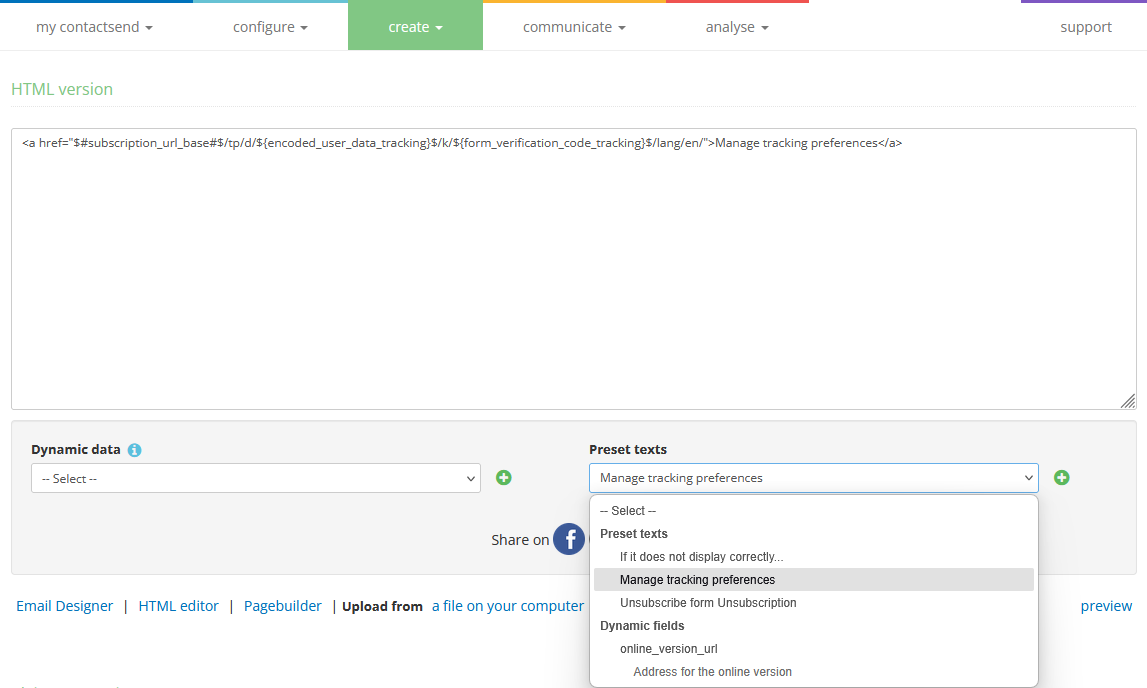
When creating an email delivery, you can insert the tracking preferences link using a preset text.
In the Message content step:
- Open the Preset texts menu.
- Select Manage tracking preferences.
- Insert the text at the desired point in the communication.
The preset text automatically adds the link to the tracking preferences page to the HTML.
Tracking preferences page
When the recipient clicks the Manage tracking preferences link in the communication, a dedicated page is displayed where the tracking preference can be changed.
Saving the preference updates the __clt field associated with the recipient. This change only affects tracking: the recipient will continue to receive communications unless they unsubscribe separately.
In this case, open and click tracking is applied to all recipients, regardless of the value of the__clt field.
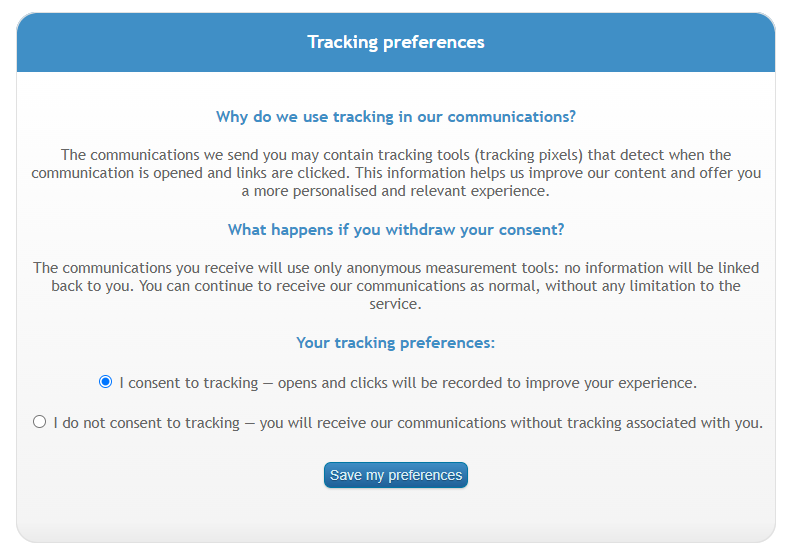
The tracking preferences page can be customized at the platform and database levels. For more information, contact the Contactlab team.
Meta Lead Ads
For contacts acquired through a Meta Lead Ads form, if the __clt field is present in the database, its value is automatically set to 1.
The customer must ensure that the Meta form includes an appropriate privacy notice and a mechanism for collecting tracking consent.
Reporting
For information about viewing changes to user preferences, see Tracking consent reporting.
How to send emails without tracking
If tracking consent is not managed through the __clt field, emails can be sent without tracking opens or link clicks. Tracking can be disabled for a single email delivery or in the email group settings.
Disable tracking for an email delivery
In Create > Email campaign, at the Delivery Parameters step, disable both Open tracking and Link tracking in the Statistics section.

Disable tracking in an email group
In Configure > Email groups, select the relevant group, click Edit, and proceed to the Options step. Here, disable Opened statistics and Link tracking statistics.
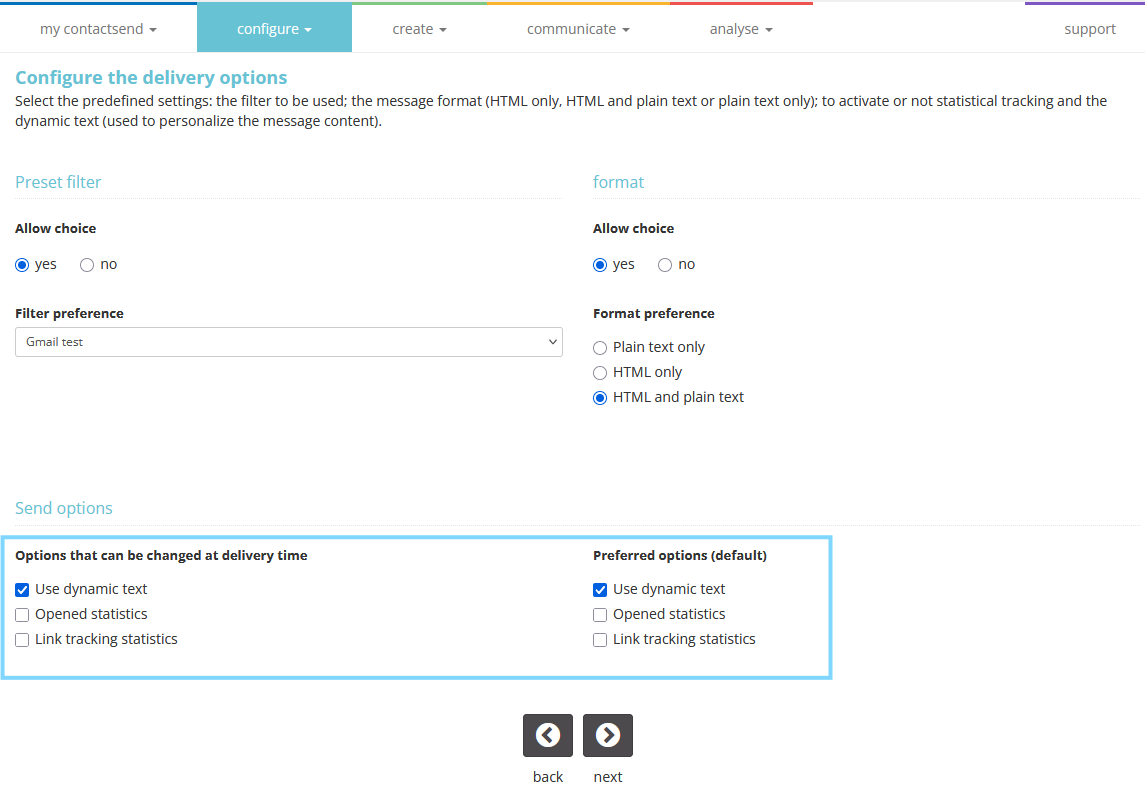
The options in the two columns have different effects:
-
Right column - Preferred options (default): sets the defaults for new deliveries. If tracking is disabled only in this column, it can be enabled again when creating a delivery.
-
Left column - Options that can be changed at delivery time: determines which tracking options are available for the group. If open and link tracking are also disabled in this column, they cannot be enabled when creating a delivery with that group.
To prevent tracking from being enabled in new deliveries using the group, the corresponding options must also be disabled in the left column.